
If you need to replace a video that is already embedded across multiple pages, updating each embed manually would be a time-consuming process. The Swap Video feature eliminates that entirely — you replace the video once inside Vidalytics, and every page where it is embedded automatically serves the new version.
No re-embedding. No code changes. No downtime.
Note: Swapping a video replaces the video file being served by the embed code. It does not change the video's title, duration, thumbnail, preview image, or its location in your Vidalytics library — only the content being played through the existing embed.
How to Swap Your Video
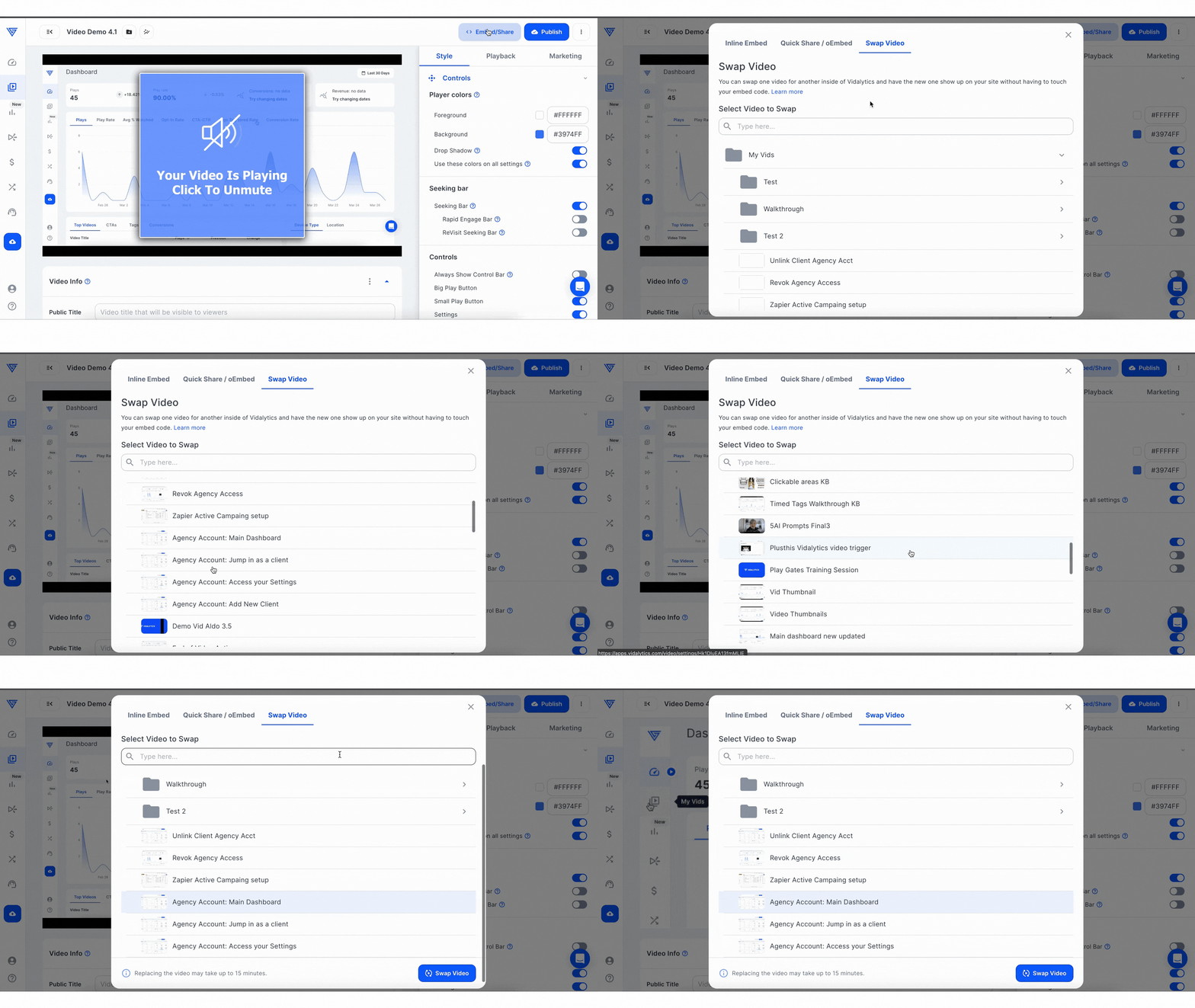
Open your Video Settings — go to your video library, select the video you want to replace, and click Edit to open its settings page.
Open Embed/Share settings — at the top of the Video Settings page, click the Embed/Share option to access your embed settings.
Swap the video — click Swap Video, select the video you want to replace the current one with from your library, and click + Swap Video to confirm. The swap will begin processing in the background.
That's it! Your original video will remain in your account so its data and history are preserved.
Learn how the Swap Video Feature Works HERE
 What to Expect After Swapping

Please allow 15 to 20 minutes for the new video to fully propagate and appear on all pages where the original was embedded.
Once that window has passed, go back to your video settings and click Publish before testing or re-embedding. This ensures the swap is fully applied and your pages serve the correct video.
Important: If you test the video before the 15 to 20 minute window has passed, you may still see the old video. Wait the full processing time and republish before checking the result.
Tip: Before swapping, make sure your replacement video already has all the settings you want — autoplay, CTAs, thumbnails, and so on. If you need to make adjustments after the swap, go to the replacement video's settings page, make your changes, and republish from there.
If you have any questions, feedback, or need assistance, feel free to reach out to our Customer Happiness Team at hi@vidalytics.com.