
Workspaces let Enterprise accounts run multiple brands, clients, or departments under one Vidalytics subscription — each with its own completely separate videos, folders, Smart Vids, experiments, analytics, conversions, integrations, global settings, and API keys. No more workarounds or risk of one team seeing another brand's content. Everything stays isolated while billing, the plan, and account-level admin remain centralized.
Availability & Restrictions
- Available as an Enterprise plan add-on only
- Billing is account-level only — Workspace membership never grants billing access
- Users without user-management permission see no Workspaces UI
Pricing
- $250/month (or $2,400/year) — includes 3 Workspaces
- $75/month (or $720/year) — for each additional Workspace beyond the third
- Billing starts on your next billing period after enabling the add-on
- Additional Workspace charges are prorated from the creation date and settled at the next renewal
- Deleting a Workspace stops billing for that Workspace from the deletion date
- Deleting all Workspaces except one stops billing for the add-on entirely
How Workspaces Work
Each Workspace is a fully self-contained environment inside your Enterprise account. It has its own:
- Video and folder library
- Smart Vids and experiments
- Analytics, dashboards, and conversions
- Users, roles, and permissions
- Integrations and API keys
- Global settings (player defaults and account-wide settings apply only within the Workspace they were set in)
- Industry setting (for benchmark accuracy per brand)
Nothing is shared between Workspaces. Users only see and access the Workspaces they have been added to. What stays global across all Workspaces is your plan, payment method, billing permissions, and the account owner's admin rights.
Every Workspace has an emoji icon and a name (for example 🌿 Gundry MD) displayed in the sidebar so it is always clear which Workspace you are working in.
Note: If you only belong to one Workspace, the Workspace picker is hidden and that Workspace is selected automatically.
Who It Is For
Workspaces are built for Enterprise customers managing multiple independent brands, clients, or business units — including multi-brand companies, franchises, agencies, and large in-house teams with sensitive content that should not be visible across departments.
Getting Started
Enable the add-on
Enterprise accounts without Workspaces will see a promo button in Account Settings → Users or in the Workspace picker in the sidebar. Click it to open the promo modal, review what is included, and confirm the purchase.
Once enabled, a second Workspace is created automatically with a default name. Both your original default Workspace and the new one count toward the 3 included in the add-on. Billing starts on your next renewal period.
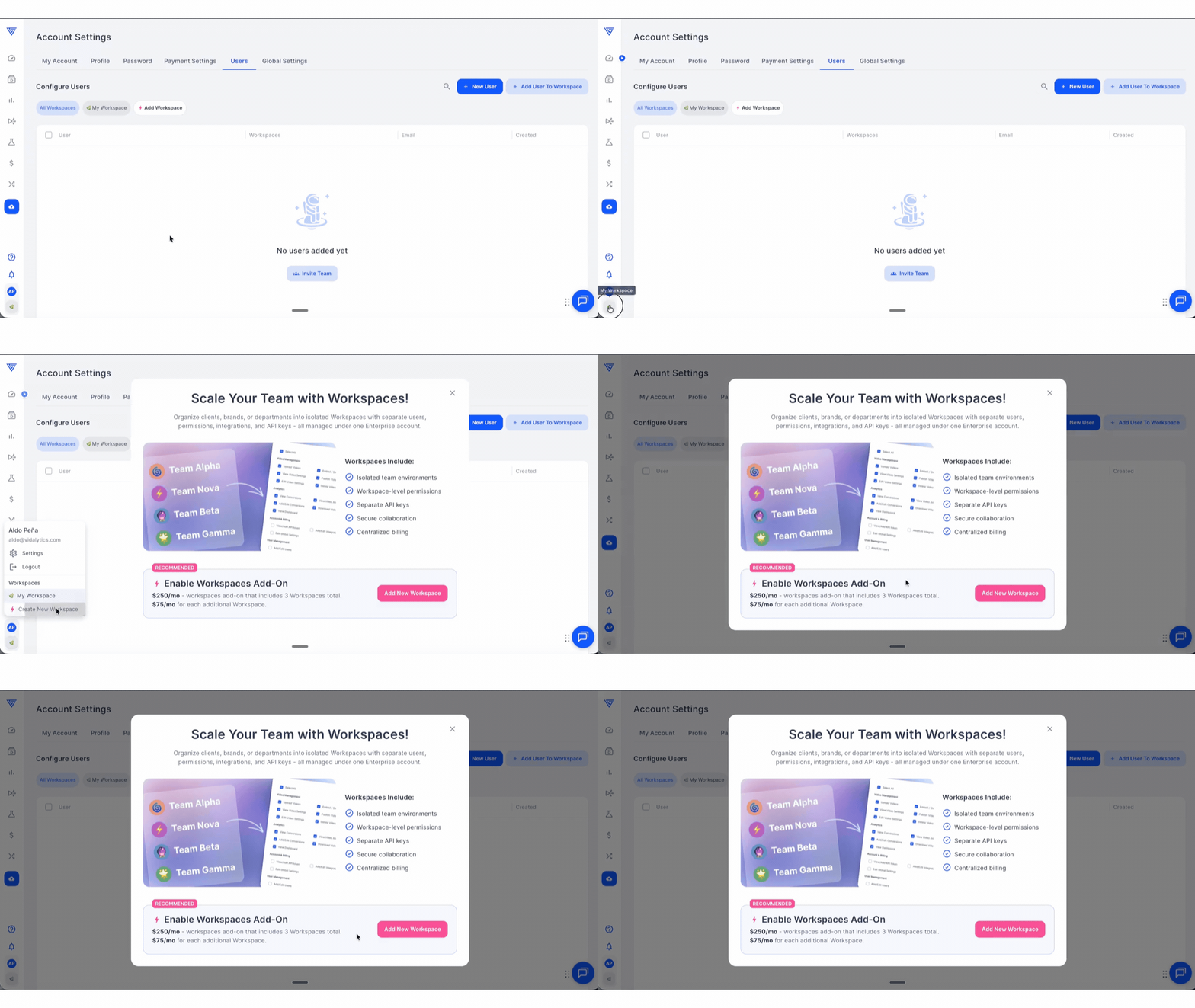
Note: If you are an existing Enterprise customer, your current account data moves automatically into a Default Workspace when Workspaces launches. No action is required on your end.
Create a Workspace
From the sidebar Workspace picker or Account Settings → Users, create a new Workspace by setting an emoji icon, a name, and the Workspace Industry. The name must be unique within the account. The Industry setting powers benchmarks specific to that brand.
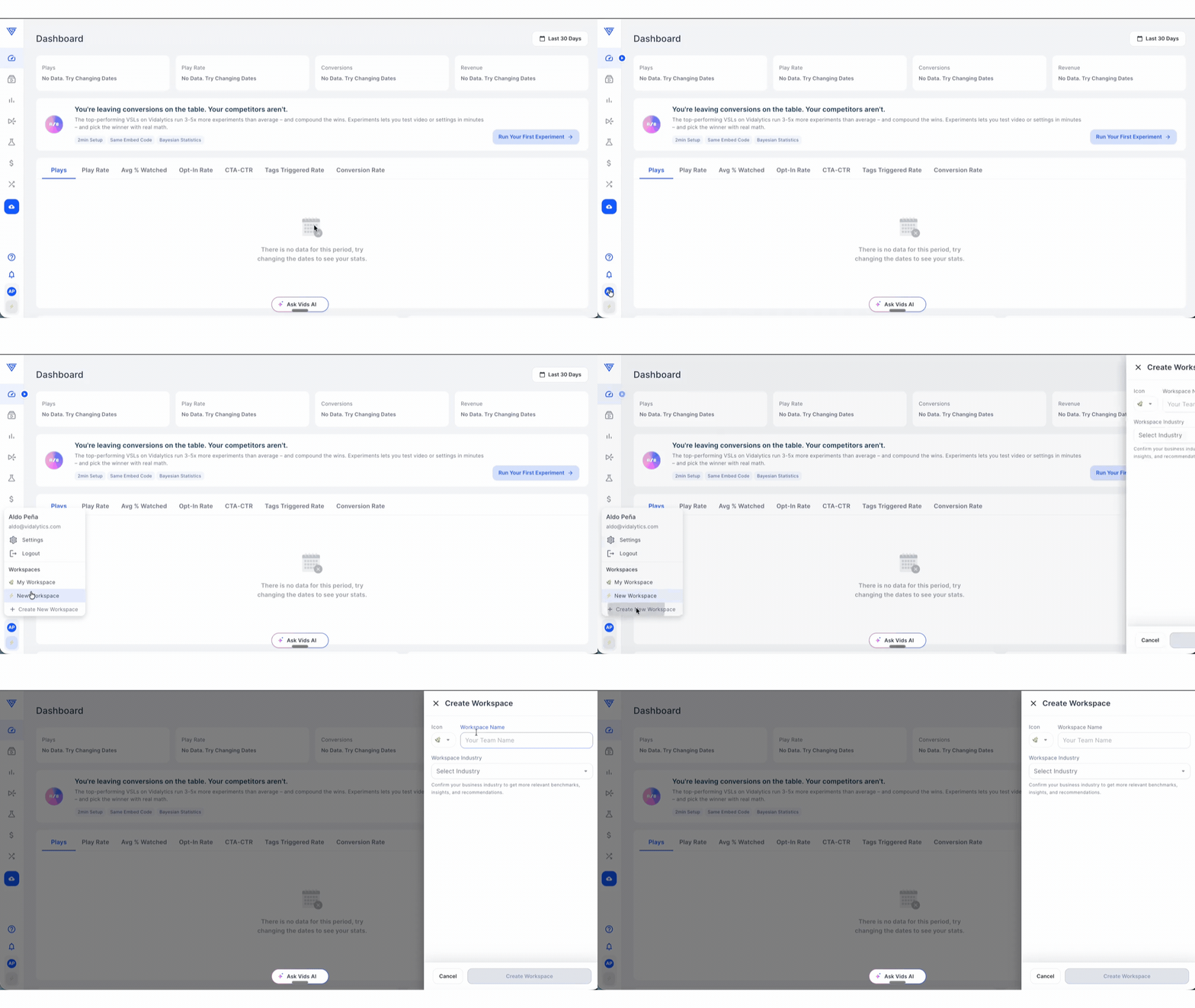
Edit a Workspace
You can update a Workspace's icon, name, or industry at any time. A rename propagates everywhere the Workspace appears — including the picker, billing line items, and digest emails — within the same session.
Delete a Workspace
Deleting a Workspace requires typing the Workspace name to confirm. Deletion is permanent and cannot be undone.
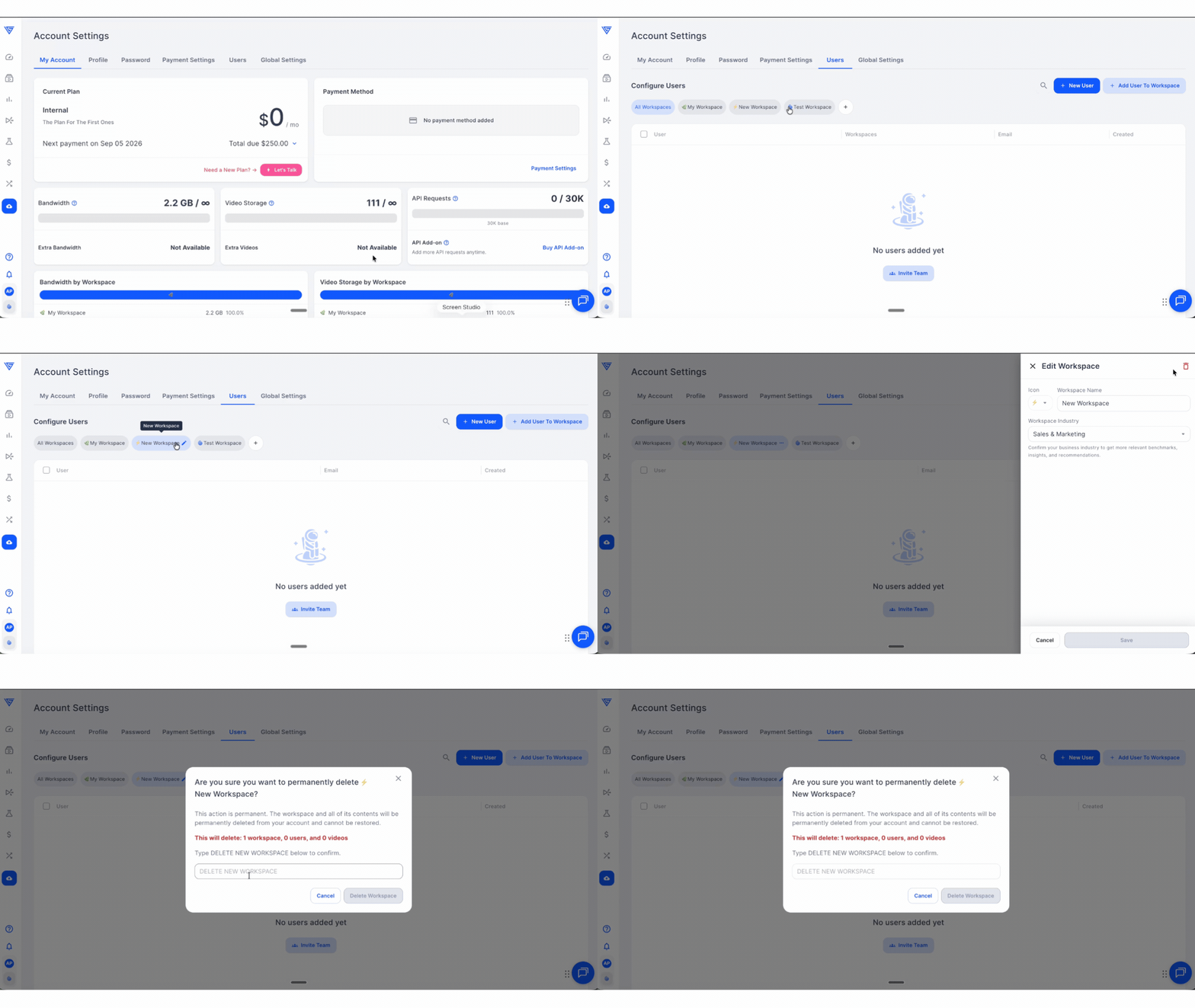
Critical: When a Workspace is deleted, every video embed from that Workspace stops playing immediately on any live page or funnel. There is no grace period, fallback, or redirect. Make sure to move or re-upload any videos still in use before deleting a Workspace.
Important: You cannot delete the Workspace you are currently in, and the last remaining Workspace on the account can never be deleted.
Who Can Manage Workspaces
The following users can create, rename, and delete Workspaces, and manage users and permissions across them:
- The account owner — has implicit access to all Workspaces. Owner admin rights are global and fixed
- Any user granted the Manage Account & Workspaces account-level permission
Note: The Manage Account & Workspaces permission grants full access inside every Workspace automatically. Billing permissions (Manage Payment Settings, View Usage and Billing History) remain account-level and are never granted per Workspace.
Managing Users Across Workspaces
Inviting a new user
Open Account Settings → Users on the Workspace you want to add them to. Start a new user invite, enter their name and email, and assign a role for that Workspace. You can also add them to additional Workspaces at the same time — each Workspace gets its own role and permission set. The user receives an invitation email with a login link.
Adding an existing user to another Workspace
Open Account Settings → Users on the target Workspace and use the add-existing-user flow. Search and select one or more users — anyone already in that Workspace is excluded from the picker. Assign their role and permissions for this Workspace. The user gains access immediately and their existing access elsewhere is unaffected.
New and invited users are assigned the Viewer role by default.
Setting permissions per Workspace
Permissions are configured per Workspace independently. When editing a user, select the Workspace and assign their role — Owner, Admin, Video Manager, Analyst, Billing Manager, Viewer, or Custom — across permission groups including Video Management, Analytics, Experiments, and User and Security Management, plus Folder Access.
💡 Tip: Use Copy permissions from another user — including the same user in a different Workspace — to avoid rebuilding a permission set from scratch for each Workspace.
A note on Manage Users permission
The Manage Users permission is now Workspace-scoped. It allows inviting users and setting permissions within that Workspace only — it does not grant the ability to create or delete Workspaces.
Removing a user from a Workspace
Removing a user from a specific Workspace tab removes them from that Workspace only. Their access to all other Workspaces and their permissions in them remain completely unaffected. This action is reversible — the user can be added back at any time.
Deleting a user from the account
Available from the All Workspaces tab, or from a Workspace tab when it is the user's last remaining Workspace. This removes the user and all their permissions from the account entirely, immediately and permanently. Restoring access requires inviting them again as a new user.
Switching Between Workspaces
Switch Workspaces at any time from the sidebar user menu. The entire interface — videos, folders, Smart Vids, analytics, conversions, integrations, and API keys — resets to the active Workspace's data when you switch. Your active Workspace is remembered across page loads and sessions.
Content and Data Per Workspace
Videos, Smart Vids, and folders All content is uploaded and created within the active Workspace. Content from other Workspaces is not visible in the library, in search, in templates, or as a source for a Smart Vid — until you switch Workspaces.
Conversions Conversions are created and managed within the active Workspace and can only be attached to videos in that same Workspace. Conversion data in the dashboard and stats reflects the active Workspace only.
Integrations Each Workspace has its own independent integration set, connected and configured separately. The same third-party account can be connected in multiple Workspaces — disconnecting it in one has no effect on the others.
Global Settings Global settings are stored per Workspace. Player defaults and other account-wide settings apply only within the Workspace they were set in and do not propagate to other Workspaces.
API Keys API keys are issued per Workspace and only authorize access to that Workspace's content. Any request that tries to read or write another Workspace's data is rejected. MCP follows the same rule.
Billing and Usage Reporting
Users with billing permission can view a full breakdown in Payment Settings, including:
- A payment breakdown showing the add-on and any additional Workspace line items
- Per-Workspace usage charts for Bandwidth and Video Storage, showing GB and share of total for each Workspace
Your plan's bandwidth and storage allowance remains account-level and shared as a single pool across all Workspaces — there are no per-Workspace limits or separate allocations.
Note: Bandwidth and usage data is only visible to users with account-level billing permission. All other users — regardless of their Workspace role — do not see the Payment Settings tab, usage banners, or usage notification emails.
Weekly Digest Emails
The weekly digest is generated per Workspace and contains only that Workspace's metrics. Recipients are the account owner and users with user-management permission in that Workspace, based on existing digest subscription settings.
If you have any questions, feedback, or need assistance, feel free to reach out to our Customer Happiness Team at hi@vidalytics.com.