
Vid Chat adds an AI chat to your video player. Viewers pick a question from a list or type their own, get a short answer, and the video jumps to the moment that covers it. One long video becomes an ask-anything experience, so viewers find what they care about instead of dropping off.
Availability & Restrictions:
- Vid Chat is in beta. Premium and Enterprise accounts can opt in for early access from Vid Settings
- Setup is desktop only. Viewers see the chat on every device
- Not available on Smart Vids
- The chat is hidden in fullscreen and picture-in-picture
How to Get Access
Open Vid Settings for any video. A popup invites you to try Vid Chat. Click Get early access to turn it on for your account.
If you dismissed the popup, go to Marketing in the Vid Settings sidebar and click Turn on on the Vid Chat card.
How to Set It Up
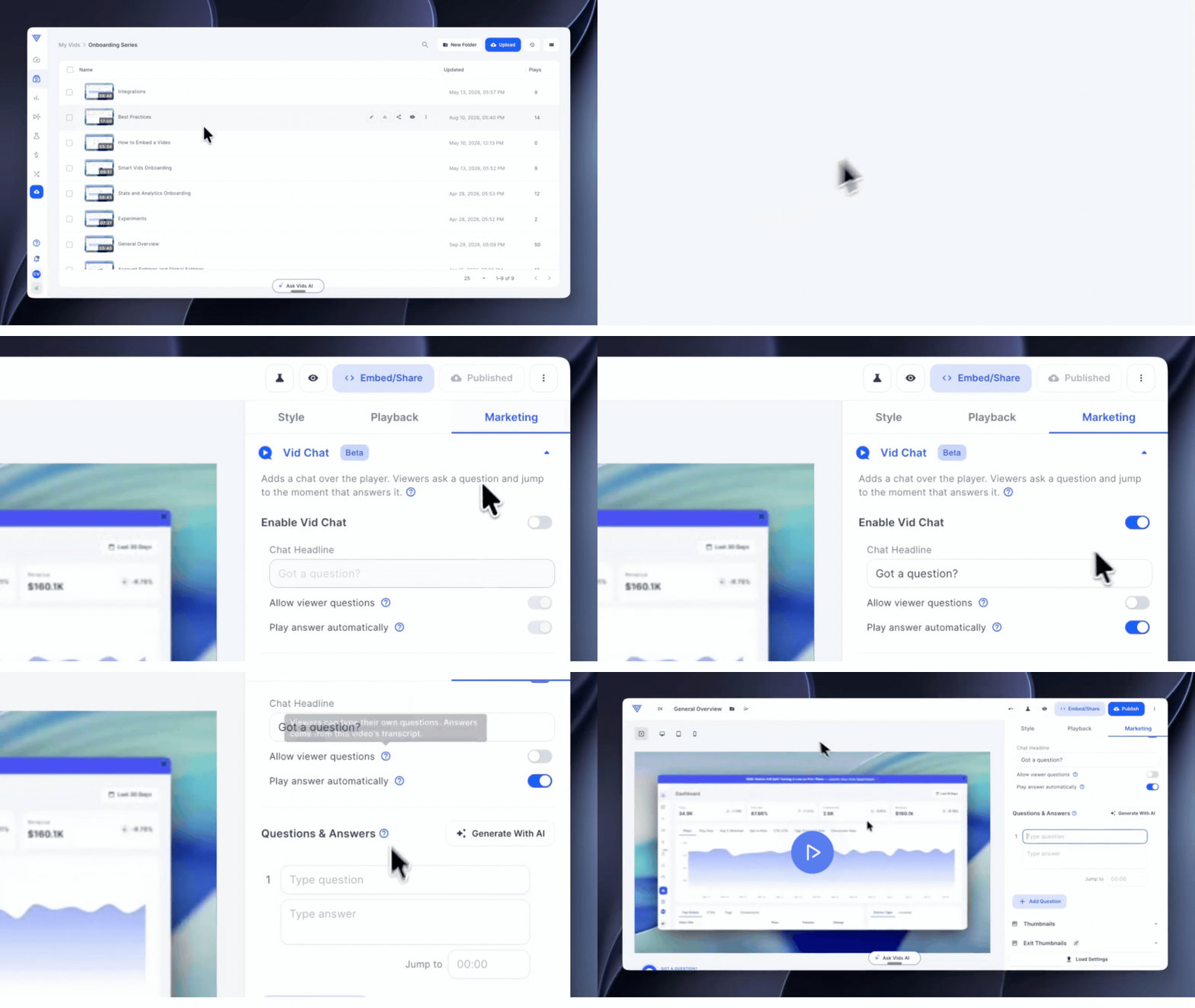
- Open Vid Settings for your horizontal video and go to Marketing Settings → Vid Chat
- Wait for the video to be prepared. Vidalytics generates a transcript from your video's audio, which can take a few minutes
- Fill in the title and the Questions & Answers. They are generated automatically from your video. Edit anything, add your own (up to 50), and drag to set the order. Questions at the top show first
- Add a timestamp (mm:ss.s) to any answer you want the video to jump to
- Choose your settings:
- Free text question: lets viewers type their own questions
- Answer autoplay: resumes playback after the video jumps to an answer
- Test it in the player preview on Desktop, Tablet, and Mobile
- Turn Vid Chat on and publish
What Viewers See
The chat starts collapsed under the player. When opened, it shows up to 4 questions at a time. Clicking a question jumps the video to the answer's moment while the answer types out. A time chip lets viewers jump back to that moment at any time.
If a typed question isn't covered in your video, Vid Chat says so instead of guessing. On mobile, the chat sits below the video and the page scrolls so both stay in view.
AI Answer Limits:
- Typed questions use AI Answer credits: 1,000 per account per month, shared across all your videos
- Predefined questions are unlimited and don't use credits
- Test questions in the preview don't count
- If you reach the limit, the free-text box is hidden on all your videos until the limit resets. Predefined questions and your video keep working. A banner in the app shows the reset date
Use Cases
- Demo and sales videos: Let prospects skip to pricing, features, or the objection they care about instead of scrubbing the timeline
- Long VSLs and webinars: Surface the key moments as questions, so viewers who would have bounced find a reason to keep watching
- Training and onboarding: Let viewers ask "how do I…?" and jump to the exact step
FAQs
Why can't I turn Vid Chat on yet?
The video is still being prepared. Vid Chat unlocks automatically when the transcript is ready.
Do I need captions?
No. Vid Chat uses a transcript generated from your video's audio.
What happens if I replace the video file?
The transcript is regenerated. Predefined questions keep working, and free text returns when the new transcript is ready.
If you have any questions, reach out to our Customer Happiness Team at hi@vidalytics.com.