
Ever had a viewer switch tabs mid-video and miss the most important part? Smart Pause solves that. When a viewer navigates away from the tab where your video is playing, the video automatically pauses. The moment they come back, it picks up right where it left off — seamlessly, with no visible pause or play button. It just stops and continues as if nothing happened.
It is a small feature with a big impact on how much of your video your viewers actually watch.
How to Enable Smart Pause
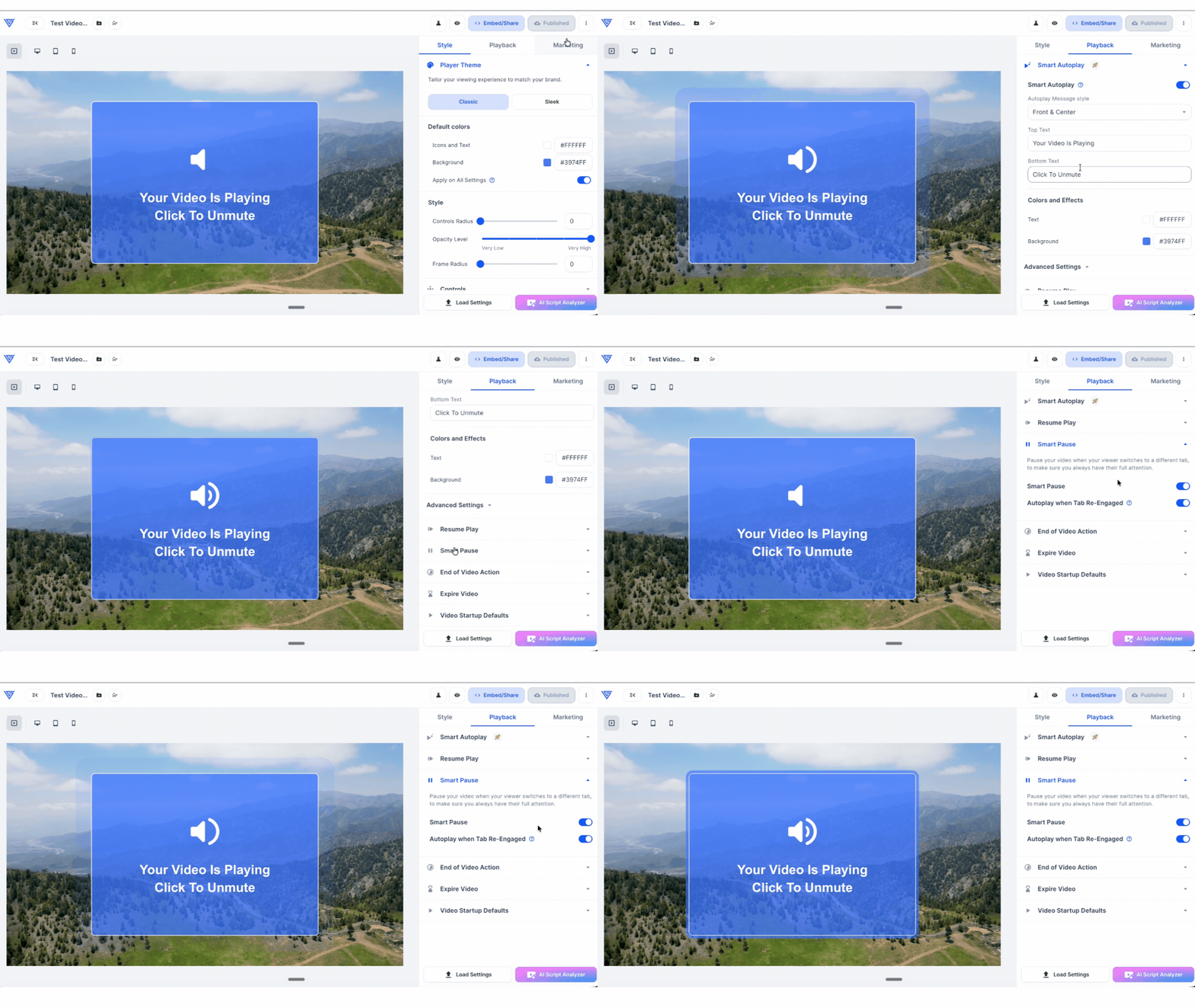
-
Access your Video Settings — navigate to your Video Settings page inside Vidalytics for the video you want to update.
-
Locate the Playback section — scroll down through your settings until you find the Playback section.
-
Enable Smart Pause — find the Smart Pause toggle, switch it on, then save your settings and publish your video for the change to go live.
That's it! From that point on, your video will automatically pause whenever a viewer leaves the tab and resume the moment they come back.
For additional questions, feedback or assistance please feel free to reach out directly to our Customer Happiness Team at hi@vidalytics.com. 😊