
Need to update a video you already have live? Replace Video lets you swap out the source file of an existing video — without re-embedding it, reconfiguring your settings, or losing your performance data. Your video ID, embed code, URL, player settings, CTAs, chapters, and stats all stay exactly as they are. You just get a new file underneath.
Restrictions:
- Replacing a file cannot be undone — once published, you cannot revert to the previous file
- If Reset Stats is enabled during the swap, all analytics for that video are permanently deleted and cannot be recovered
- Captions are dropped on replacement and the AI transcript is automatically regenerated
- Replace Video has no effect on Smart Vids — a Smart Vid keeps its own independent copy of each video step, so replacing the original file does not update any Smart Vid that already uses it
How It Works
When you replace a video file, Vidalytics processes the new file in the background while your original video keeps playing for viewers — no downtime, no "Processing" message, no interruption. The swap only goes live once the new file has fully transcoded and you choose to publish it.
Your existing settings travel with the video:
- Embed code and URL — unchanged. Every page where your video is embedded keeps working automatically
- CTAs, chapters, and tags — all retained at their exact timestamps. If a timestamp falls outside the new video's duration, the player skips it and you can adjust it manually in the UI
- Stats — carried over by default. You can optionally reset them during the swap if needed
- Custom thumbnail — preserved. Auto-generated thumbnails are regenerated from the new file
How to Replace Your Video File
- Go to your video's Settings page and find the Vid Info panel
- Click Replace Video
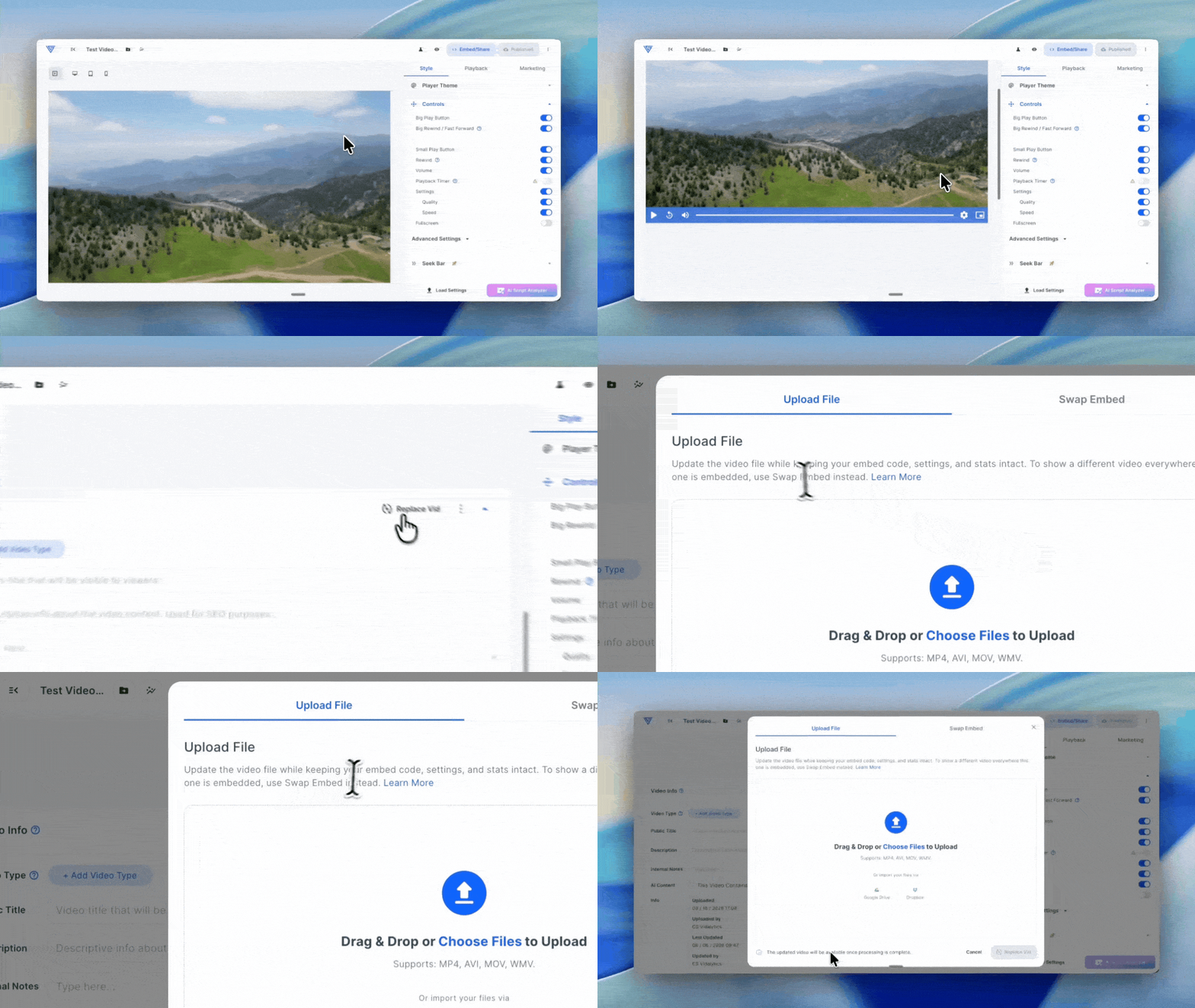
- Select your new source — you can upload a file directly, or import from Google Drive or Dropbox
- Review the Confirm Updating Video dialog — pay attention to any duration mismatch warning, then set your two options:
- Publish Automatically (default: off) — when on, the new file goes live for your audience as soon as transcoding completes. When off, the new version is held so you can preview and adjust settings before publishing
- Reset Stats (default: off) — when on, all analytics for this video are cleared permanently. When off, your historical stats are carried over to the new file
- Confirm — the modal will show upload and transcoding progress. You can navigate away at any time and processing will continue in the background
- When transcoding completes, you will receive an in-app notification and an email. If Publish Automatically was on, the new file is already live. If not, review your settings and publish when ready
Tip: We recommend leaving Publish Automatically off for your first replacement. This gives you a chance to preview the new file in Video Settings and confirm all your CTAs, chapters, and timing are correct before your audience sees it.
What Viewers See During Processing
Your original video continues playing for all viewers throughout the entire upload and transcoding process. The player never shows a processing or offline state — the swap is completely seamless from your audience's perspective.
A Note on Duration Changes
If your new file is a different length than the original, a few things to keep in mind:
- Time-based settings like CTAs, Play Gates, and tags keep their absolute timestamps. Any that fall outside the new duration will be skipped by the player — review and adjust them after the swap
- The engagement graph in your stats will reflect the new duration going forward. Historical data is not deleted, but time-based reports may look different if the length has changed significantly
Important: The confirmation dialog will warn you if a duration mismatch is detected. Take a moment to read it before confirming.
If you have any questions, feedback, or need assistance, feel free to reach out to our Customer Happiness Team at hi@vidalytics.com. 😊