
Duplicating a video in Vidalytics creates an exact copy of that video along with all of its settings, CTAs, thumbnails, and configuration. It is a great way to use an existing setup as a starting point for a new video, run a split test variation, or create a backup before making significant changes.
How to Duplicate a Video
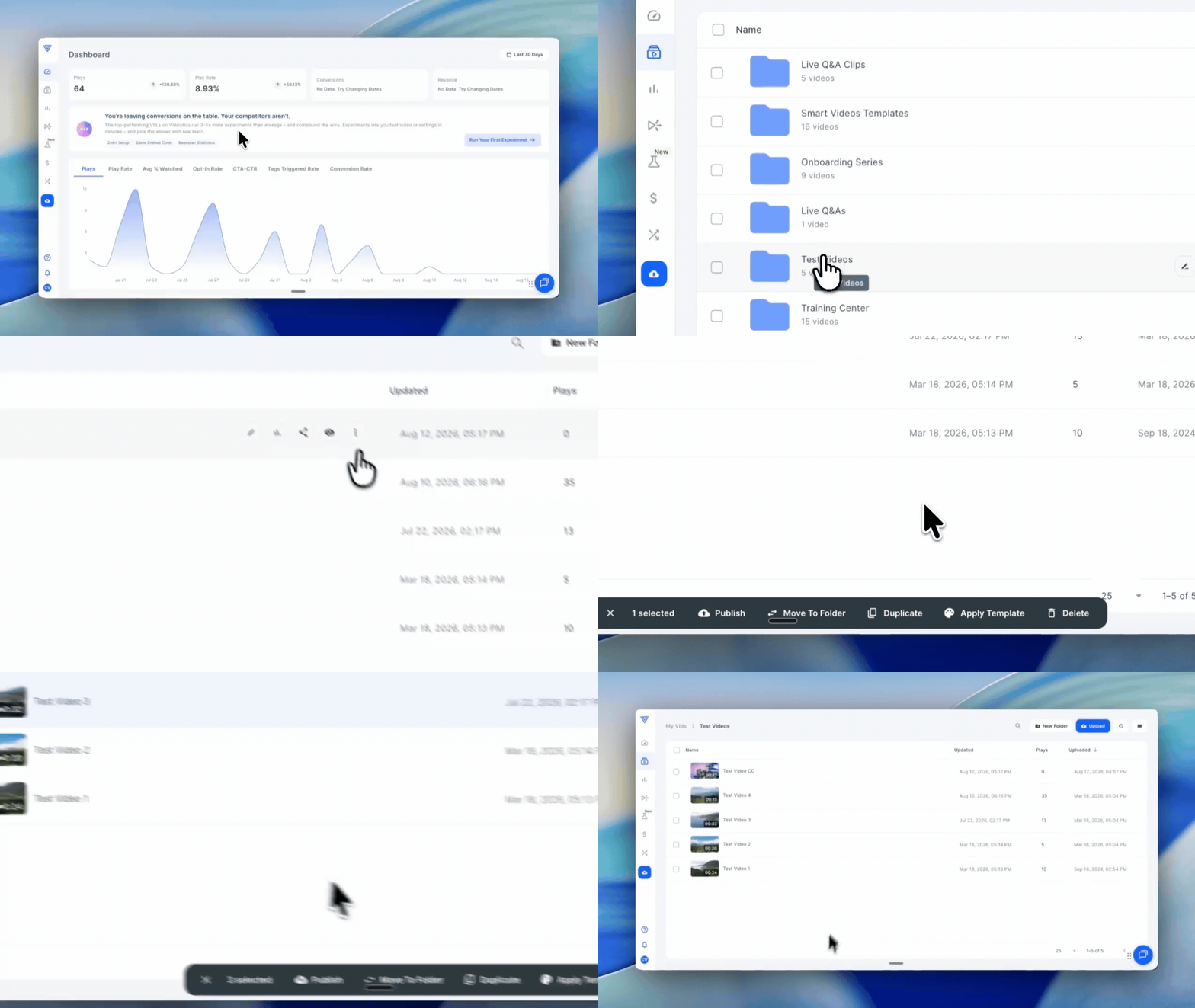
Go to your video library — click My Vids in the left-side menu to access your library.
Select the video — check the box next to the video you want to duplicate. You can select multiple videos at once if you need to duplicate more than one.
Duplicate — click the Actions button and select Duplicate from the dropdown. Your duplicated video will appear in your library instantly, ready to edit.
Tip: Duplicating is a great way to create split test variations without starting from scratch. Duplicate your original video, make the changes you want to test on the copy, and set up an experiment between the two — all your original settings are already in place on both versions.
Note: The duplicate is fully independent from the original. Changes made to the copy will not affect the original video, and vice versa.
If you have questions, feedback, or need assistance, contact our Customer Happiness Team at hi@vidalytics.com. 😊