
Your Smart Vid flow is never locked in. You can update, reroute, or completely restructure the connections between steps at any time — whether you are optimizing an existing funnel or rebuilding it from scratch.
How to Change the Flow
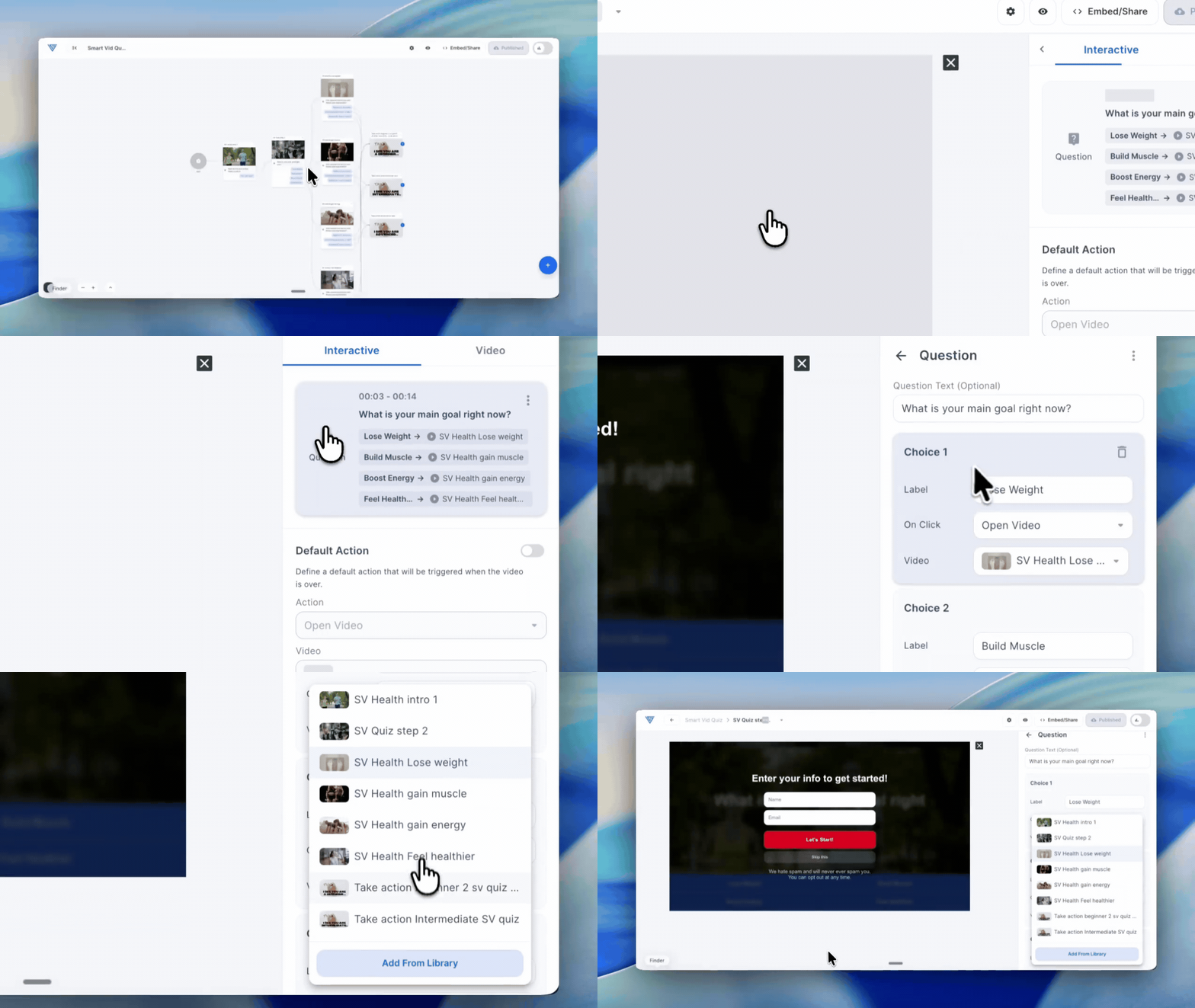
Open your Smart Vid — go to Smart Vids in the left-side menu, locate the Smart Vid you want to edit, and open it to access the canvas.
Open the Step Settings — hover over the step whose flow you want to change and click the edit (pen) icon to open its settings.
Update the Question settings — inside the step, navigate to the Question tab. Questions are what control the flow — each answer choice determines which step the viewer is sent to next. Find the answer choice you want to reroute and select a different destination step from the dropdown.
Save and republish — once you have made your changes, save the step settings and click Republish at the top right of the canvas to push the updated flow live.
Note: Always republish your Smart Vid after making any flow changes. Until you do, your viewers will continue to experience the previous version of the flow.
Tip: After rerouting a step, take a moment to review your full canvas to make sure all connections look correct before republishing. A quick preview from the start of your flow is a great way to confirm everything is working as expected.
If you have questions, feedback, or need assistance, contact our Customer Happiness Team at hi@vidalytics.com.😊