
AI Thumbnail Lab lets you generate a new thumbnail directly from frames of your video or uploaded images, then apply it instantly or run a split test against your current thumbnail to see which one performs better.
Availability & Restrictions
- Available on Pro plan and above
- Monthly generation allowance applies — when the limit is reached, an upgrade option is shown
- The Generate button is disabled while a video is in an active experiment — it will read Experiment in Progress
Where to Find It
AI Thumbnail Lab is in Vid Settings → Marketing tab → Thumbnails. The Generate With AI button appears under the main thumbnail, the mobile thumbnail, and each exit thumbnail.
How to Generate a Thumbnail
Add your references — up to three reference images can be used. If the video already has a thumbnail, it is added automatically as the first reference. You can add more by picking frames directly from your video or uploading your own images.
Choose a style — select from ready-made style presets such as Cinematic, Authority, or Vlog. Choose My Prompt if you want to describe the look yourself.
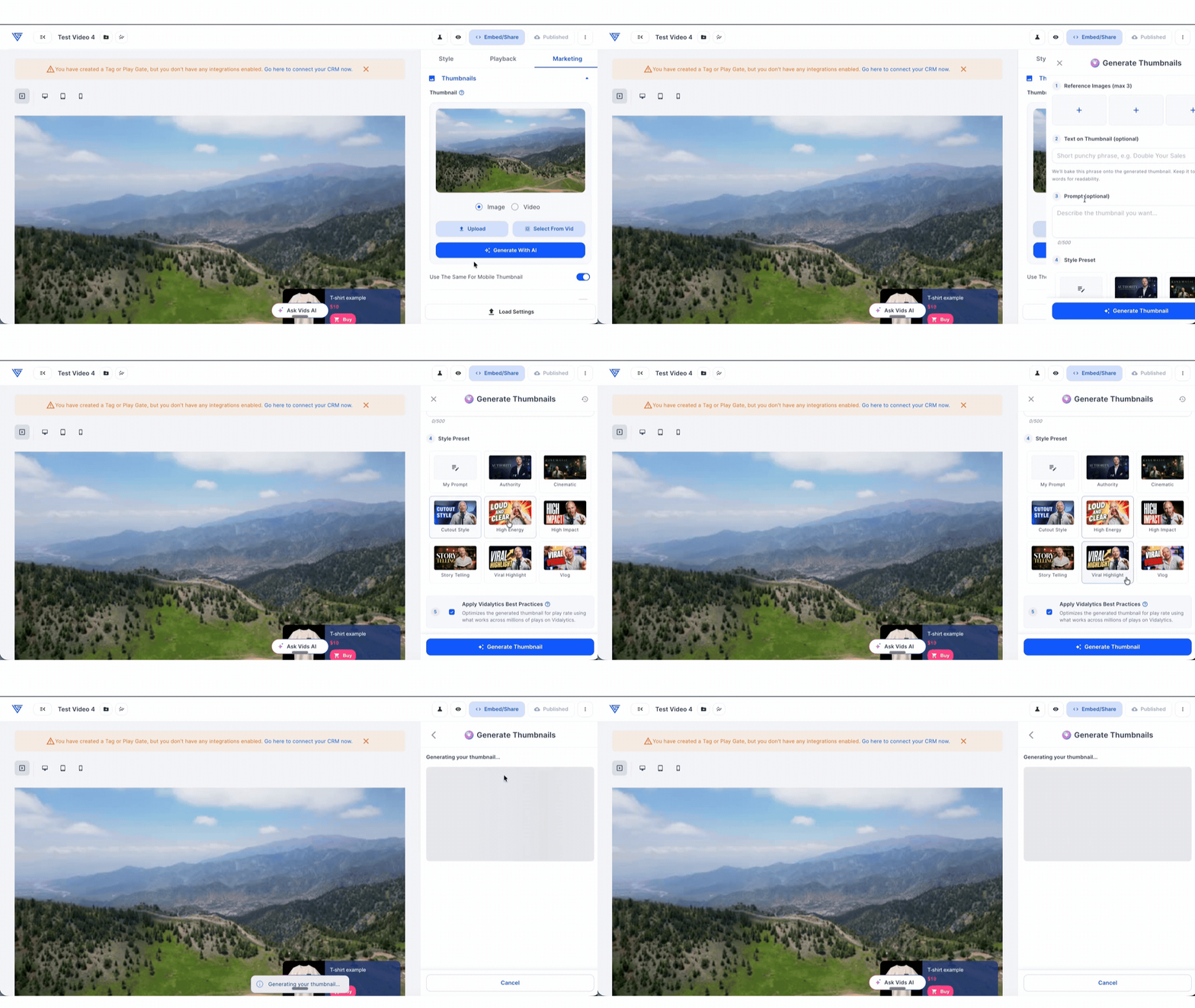
Add optional details:
- Text on Thumbnail — a short headline, up to 6 words or 40 characters
- Prompt — describe the scene, mood, or specific details, up to 500 characters. Required if using My Prompt
Apply best practices — this is on by default and steers the result toward proven thumbnail rules: one focal point, high contrast, real faces and products kept intact, and a clear center for the play button. Leave it on unless you have a specific reason to turn it off.
Click Generate Thumbnail — results typically take under a minute.
What You Can Do With the Result
Apply — replaces the thumbnail it was generated for (main, mobile, or a specific exit thumbnail) immediately. Other thumbnails are not affected.
Run Experiment — opens a new experiment draft with your current thumbnail as the Control and a copy of the video with the generated thumbnail as the Variant. Traffic is split 50/50. Pick a success metric and click Save & Review — from there it works like any other Vidalytics experiment.
Adjust Result — describe what you want to change (e.g. “brighter background” or “tighter crop”) and the AI edits the existing image rather than starting over. Counts as one generation.
Generate Another — returns to the form to start fresh.
%205.26.56%20p.m..png?width=329&height=501&name=Captura%20de%20pantalla%202026-10-19%20a%20la(s)%205.26.56%20p.m..png)
Generation History
All generated thumbnails for a video — main, mobile, and exit — are saved in Generation History. Each image shows where it is currently applied (e.g. “Applied · Exit 0:45–1:30”). Any image from History can be applied at any time.
%205.25.31%20p.m..png?width=670&height=413&name=Captura%20de%20pantalla%202026-10-19%20a%20la(s)%205.25.31%20p.m..png)
Replacing a Thumbnail
To replace an existing thumbnail, generate a new one and click Apply. This overwrites the current thumbnail for that slot (main, mobile, or a specific exit thumbnail) immediately.
You can also apply any previously generated thumbnail from Generation History — select the image and choose the target slot to apply it to.
Deleting a Thumbnail
To remove a thumbnail entirely, go to Vid Settings → Marketing tab → Thumbnails, hover over the thumbnail you want to remove, and click the delete option. This clears the slot and reverts it to the default video frame.
Good to Know
- Each Generate and Adjust action uses one generation from your monthly allowance
- Failed attempts and prompts blocked by the AI safety filter do not count toward your allowance
- If your prompt is blocked, the form stays open, the prompt is highlighted, and you will see a message listing what was flagged. Rephrasing usually resolves it
- Generated thumbnails carry a standard machine-readable AI marker in the image file — no visible badge is added to the thumbnail itself
For additional questions, feedback or assistance please feel free to reach out directly to our Customer Happiness Team at hi@vidalytics.com.